
X / Twitter Hashtag App
The X / Twitter Hashtag app displays posts from X (formerly Twitter) that include a specific hashtag.
When you add and setup an app to a playlist, it appears as a scene.
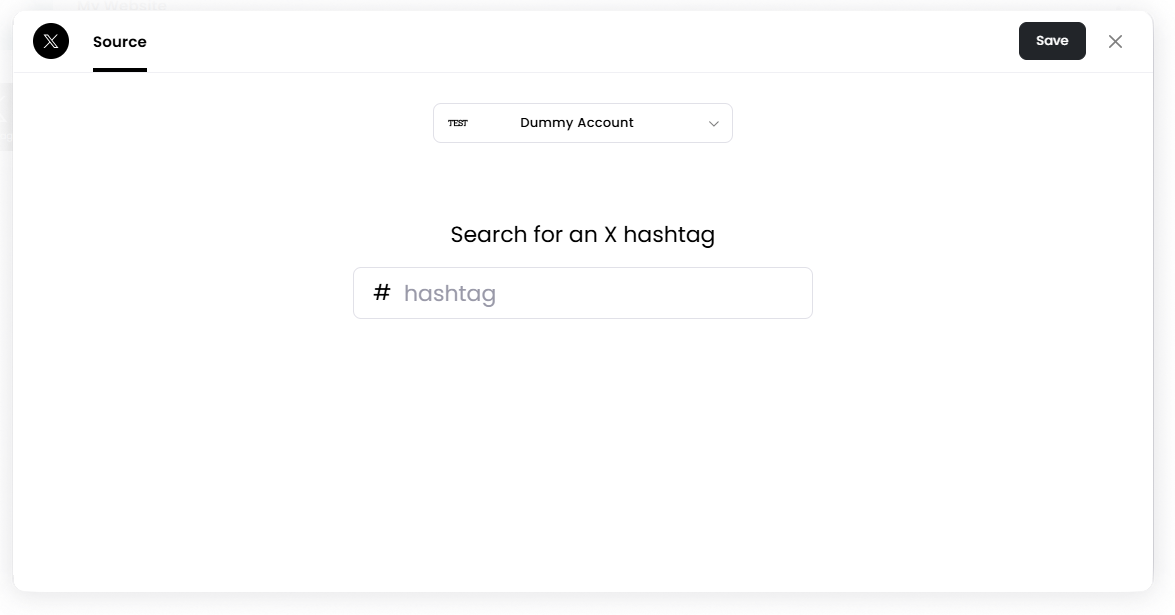
To use this app, you must connect an X Account to Juuno and enter the hashtag you want to display posts from.
Connect an X Account
Add the X/Twitter Hashtag app to your playlist.
In the Source tab, connect your X Account and grant all permissions.
After connecting, you will be redirected back to Juuno.
Enter the hashtag you want to display.
Example: #events #companyculture1
Click Add.
Moderate Posts
The Moderate tab allows you to review and control which posts appear on screen.
Options include:
Manually approve new posts — New posts must be approved before appearing publicly.
Auto-approve new posts — New posts automatically appear.
You can also filter posts by:
All
Needs Approval
Approved
Rejected
Style Settings
The Style tab controls how posts appear on screen.
Display Language Select the language used for the post display. Currently, English (en) is supported.
Post Duration (Seconds) Set how long each post appears before switching to the next post.
Font Choose the font used for the post text.
Text Colour Choose the color used for the text.
Background Colour Choose the background color behind the post.
Fit Controls how post images and videos fit on the screen.
Transition Speed Controls how quickly posts transition between each other.
Randomize Order Display posts in a random order instead of chronological order.
Hide UI Text Hide interface elements such as timestamps.
Set the Scene Duration
After saving the app, you can adjust how long the scene stays in the playlist.
In the Playlist, find the X/Twitter Hashtag scene.
Click the duration value (for example,
00:30) to set how long the scene plays.00:30means the scene will play for 30 seconds.
Notes
An X or formerly Twitter account must be connected before displaying hashtag posts.
Only posts containing the selected hashtag will appear.
New posts will appear automatically depending on the Moderate settings.
Currently, English is the only supported display language for social apps.