
Image Slideshow App
The Image Slideshow app displays multiple images from the Media Library in a rotating slideshow.
When you add and setup an app to a playlist, it appears as a scene.
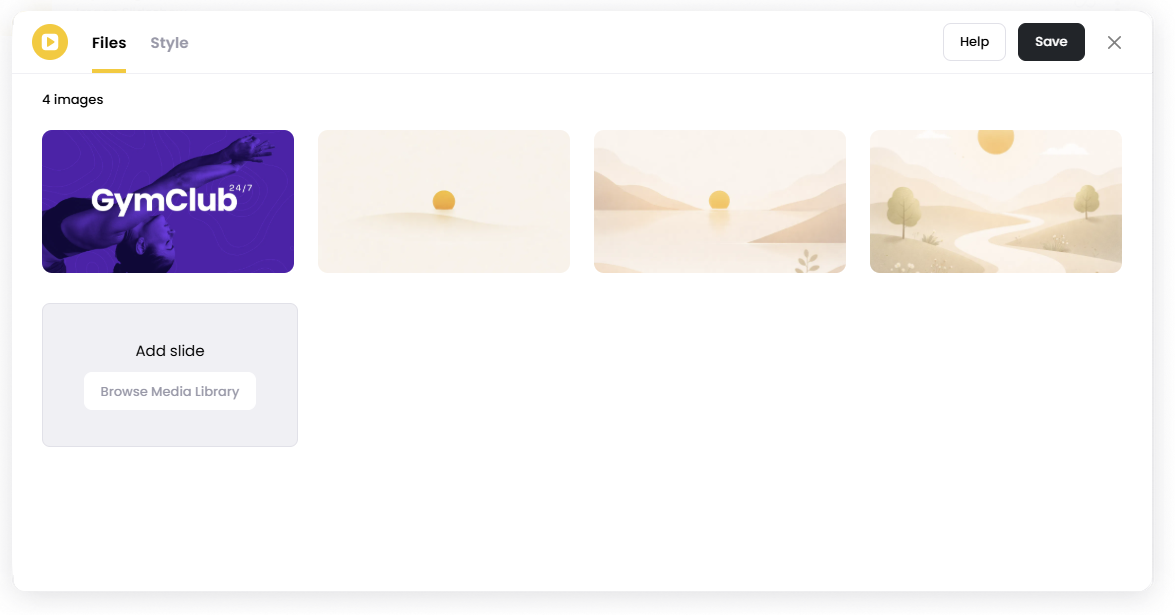
Images play in sequence and automatically transition between slides.
Add the Image Slideshow App
Open the Playlist where you want to add the slideshow.
In the right panel, drag Image Slideshow into the playlist.
Open the scene to configure it.
Click Browse Media Library to select an images, or upload new.
Add images to the slideshow
Adjust the style settings if needed.
Click Save.
Add Images
Open the Files tab.
Click Browse Media Library to select an images, or upload new.
Select the images you want to include.
Repeat Add slide to add more images if needed.
Images will appear in the slideshow in the order they are added.
Style Settings
The Style tab controls how images appear on screen.
Layout Choose how images are displayed.
Example:
Single Image
Two Up
Three Up
Four Up
Background Colour Choose the background color behind the images.
Fit Controls how images fit on the screen.
Example:
Fit and Center Image
Scale Image to fill frame
Image Duration (Seconds) Set how long each image appears before switching to the next slide.
Transition Speed Controls how quickly slides transition.
Randomize Order Display images in a random order instead of the set order.
Set the Scene Duration
After saving the app, you can adjust how long the scene stays in the playlist.
In the Playlist, find the Image Slideshow scene.
Click the duration value (for example,
00:30) to set how long the scene plays.00:30means the scene will play for 30 seconds.
Notes
Images are selected from the Media Library.
Images will rotate automatically based on Image Duration.
The order of images can be randomized using Randomize Order.