
Website App
The Website app lets you display a live website as a scene.
When you add and setup an app to a playlist, it appears as a scene.
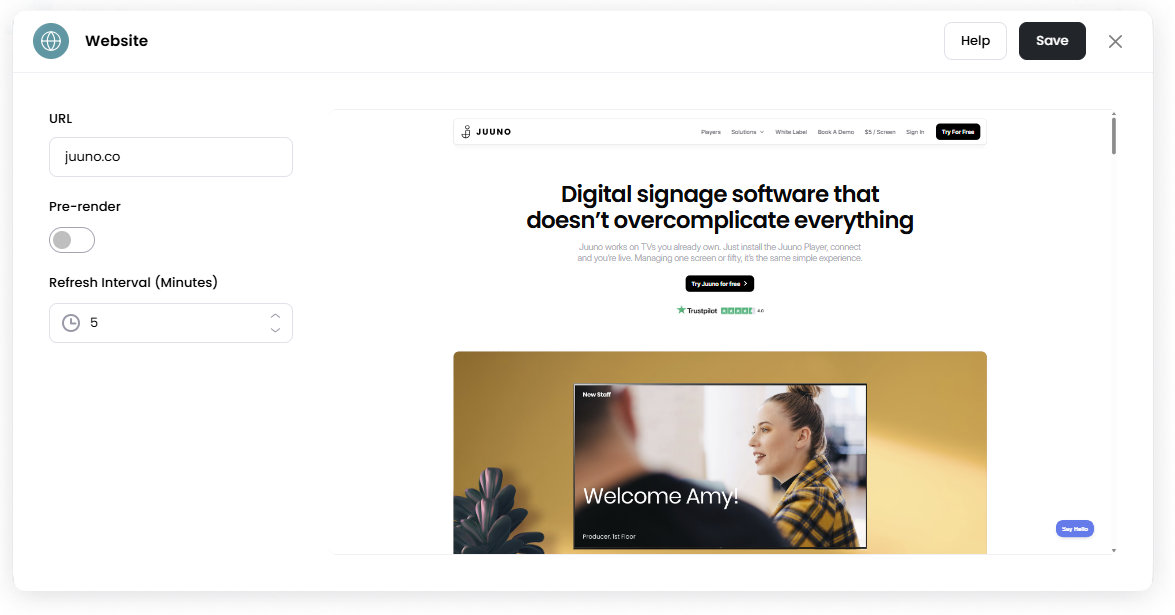
This allows you to show web pages such as public dashboards, booking systems, menus, or internal tools directly on your screen.
Add the Website App
Open the Playlist where you want to add the website.
In the right panel, drag Website into the playlist.
Open the scene to configure it.
Enter the URL of the website you want to display.
Adjust the refresh and rendering settings if needed.
Click Save.
Configuration Options
URL Enter the full URL of the website you want to display.
Example:
https://www.website.com
Pre-render When enabled, the website is loaded in advance before the scene becomes active. This can help reduce loading time when the scene starts.
Refresh Interval (Minutes) Set how often the website reloads automatically.
Example:
5refreshes the website every 5 minutes.
The refresh interval timer continues counting down in the background, even when it's not the scene currently playing in the playlist.
Set the Scene Duration
After saving the app, you can adjust how long the scene stays in the playlist.
In the Playlist, find the Website scene.
Click the duration value (for example,
00:30) to set how long the scene plays.00:30means the scene will play for 30 seconds.
Notes
Some websites may not display correctly due to their security settings.
Certain websites use security headers such as
X-Frame-Optionswhich prevent us from displaying it.If a website does not load, try entering the full URL including
http://orhttps://.Website must be publicly accessible.