
What is a Schedule?
A schedule automates when playlists play on your screens based on time of day and day of week. Instead of manually casting playlists, create a schedule that switches content automatically.
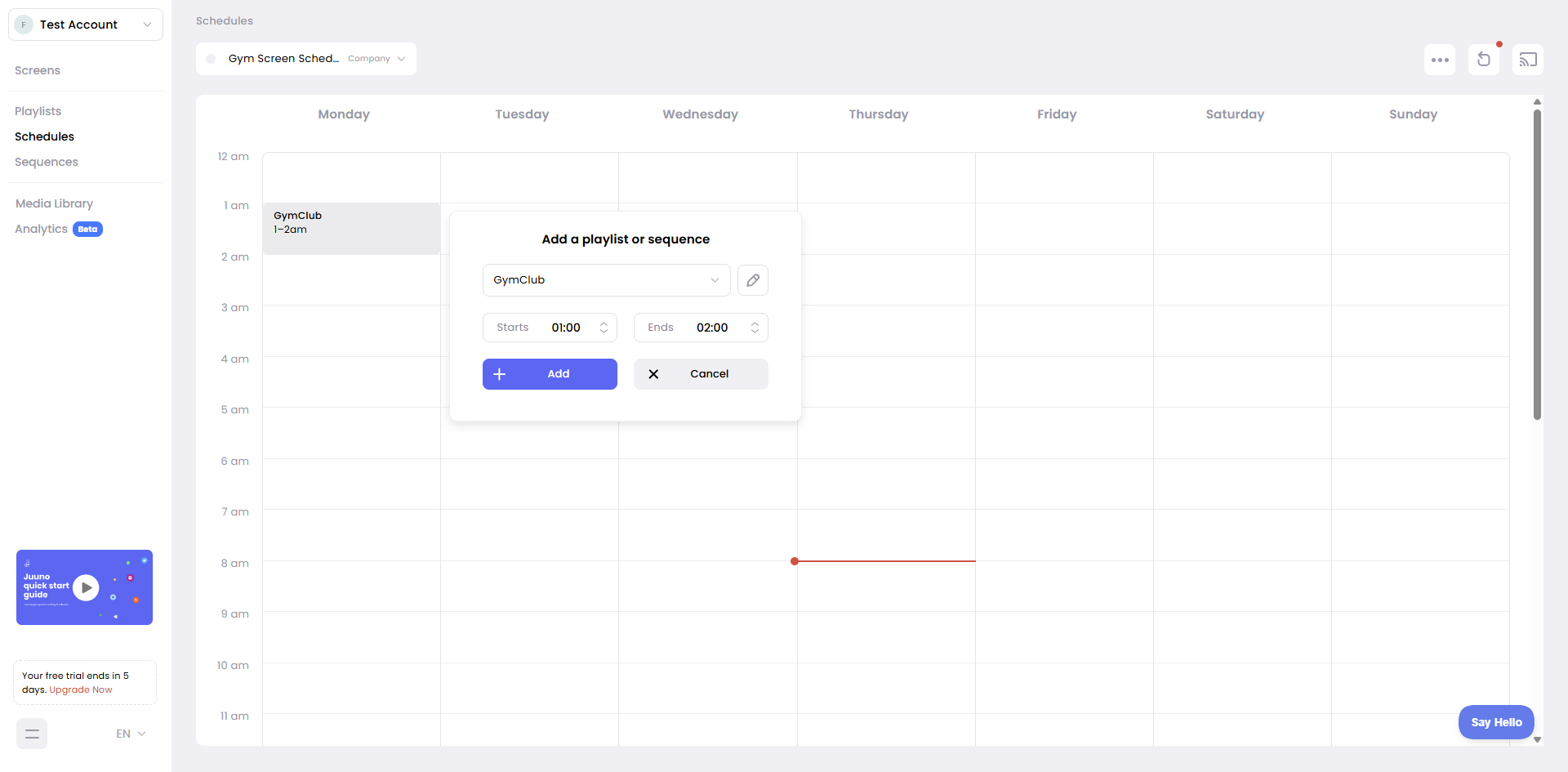
How schedules work
Define time blocks in your schedule and assign a playlist to each block. For example, show breakfast menus from 7-11 AM, lunch menus from 11 AM-3 PM, and dinner menus from 3-9 PM. Set which days the schedule runs, and Juuno handles the rest.
Schedules use your screen's timezone, so content plays at the right local time even if you're managing screens in different regions.
Fallback playlists/sequence
If there's a gap in your schedule (no playlist assigned for a time block), the screen shows your fallback playlist or a sequence. Without a fallback, the screen goes black during gaps. You can set a fallback to keep content running 24/7.
Screens display black during unscheduled time blocks if no fallback playlist is set.
Creating schedules
Build schedules from the Schedules page. Add time blocks, assign playlists or sequences to each block, choose which days the schedule runs, and set a fallback playlist. Then cast the schedule to your screen just like you would a playlist.
When to use schedules
Use schedules when your content changes based on time—restaurant menus, retail promotions that vary by day, or office announcements that only show during business hours. For static content that doesn't change by time, a simple playlist is enough.
See When to use Schedules for detailed use cases.