
Android / Chromecast Installation Guide
Install the Juuno app on your Android TV or any TV with Google Play Store access to turn your display into a digital signage screen.
Older Chromecast devices without Google TV are not supported. Check your device before proceeding.
Installation Steps
Go to the Home Screen: Press the Home button on your TV remote.
Open Google Play Store: Find and select the "Play Store" app from your apps.
Search for Juuno: Use the search function (magnifying glass icon) and type "Juuno".
Install the App: Select the Juuno app from search results and click Download or Install.
Open Juuno: Once installed, launch the app from the Play Store or find it under "Apps" on your Home screen.
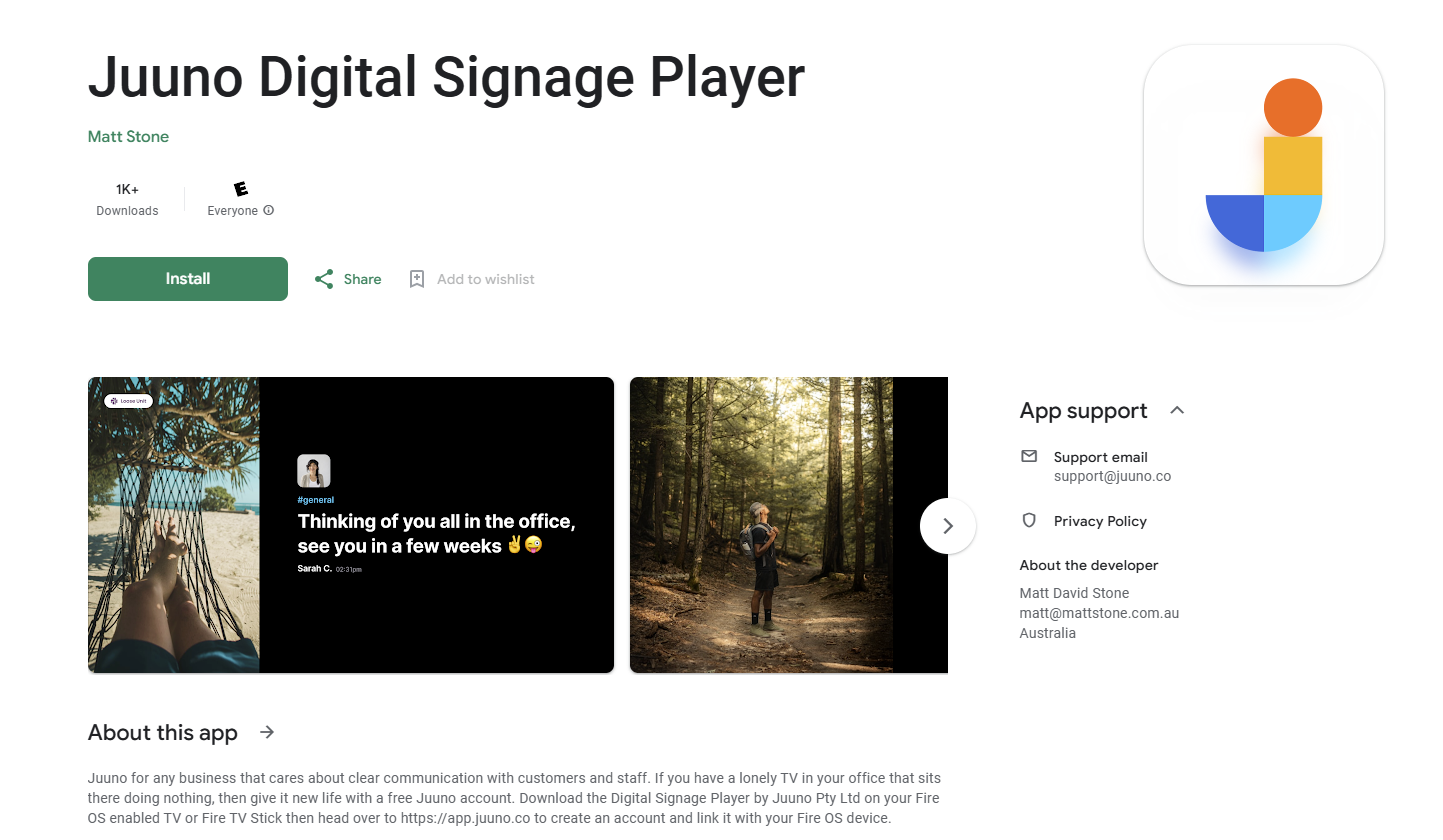
Direct link: Juuno Digital Signage Player on Google Play
Enable Autostart on Reboot
To automatically restart Juuno when your device powers back on after being turned off overnight:
Enable the "Display over other apps" permission:
Navigate to Quick Settings → All Settings → Apps → Special App Access → Display over other apps
Keep the default Google apps enabled (if there are any by default), and make sure this setting is turned ON for Juuno only.
To avoid conflicts, please ensure no other third-party apps have this permission enabled.
Enable Automatic Updates (Recommended)
Keeping automatic updates enabled ensures your Juuno app stays up to date without manual intervention.
Go to the Home Screen: Press the Home button on your TV remote.
Go to Quick Settings: On your TV screen, navigate to Quick Settings (gear icon). This will open a panel with additional options.
Open All settings: In the panel, select All settings (gear icon) to open the full Settings screen.
Go to Apps, then Manage Updates: In the Settings screen, navigate to Apps, then select Manage Updates.
Enable Auto-update apps: Make sure Auto-update apps is turned on.
Manually Updating Juuno App
Keeping the Juuno app updated ensures you have the latest features, performance improvements, and bug fixes.
Go to the Home Screen: Press the Home button on your remote.
Look for Juuno: Look for Juuno in your apps list.
Open app option: Highlight the Juuno app and hold Select/button on your remote.
View details: From the menu (usually - move, open and view details) select View details.
Check for updates: If an update is available, select Update.