
RSS Reader App
The RSS Reader app displays content from RSS feeds on your screens.
When you add and setup an app to a playlist, it appears as a scene.
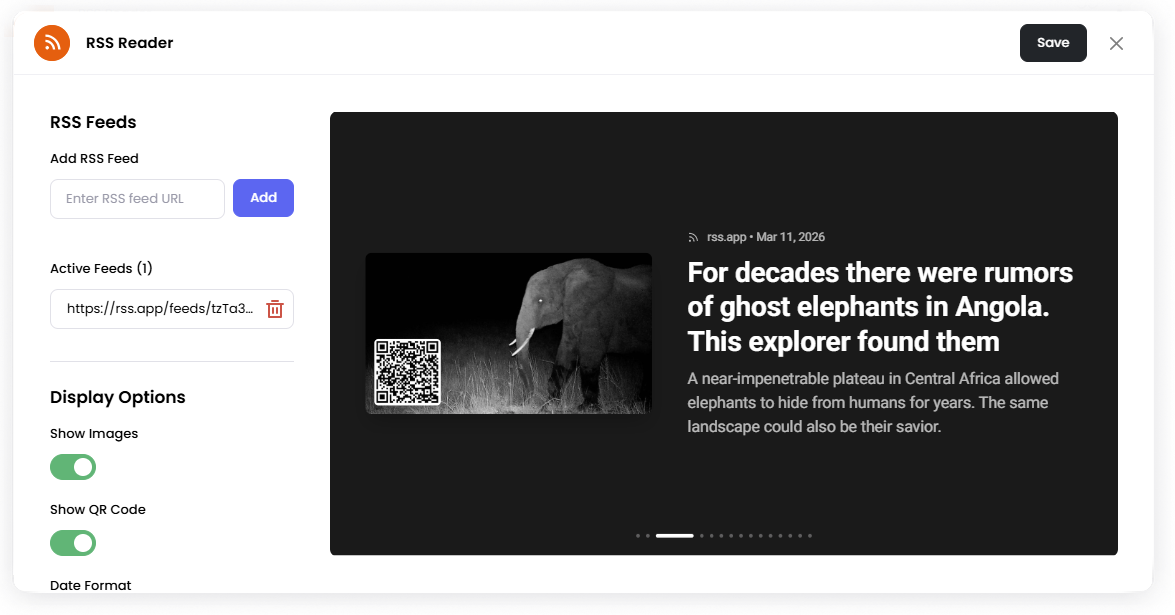
You can add one or more RSS feed URLs, and the app will automatically display the articles from those feeds.
Add the RSS Reader App
Open the Playlist where you want to add the RSS feed.
In the right panel, drag RSS Reader into the playlist.
Open the scene to configure it.
Enter the RSS feed URL.
Click Add.
Click Save.
You can add multiple RSS feeds to the same scene.
RSS Feeds
Add RSS Feed Enter the RSS feed URL and click Add.
Added feeds will appear under Active Feeds. You can remove a feed using the delete icon.
Display Options
Show Images Toggle whether images from the RSS articles are displayed.
Show QR Code Display a QR code that links to the article.
Date Format Choose how the article date is displayed.
Available options:
Short
Medium
Long
Language Select the language used for displaying feed information.
Colors
Background Color Choose the background color for the feed display.
Text Color Choose the color used for the text.
Typography
Header Font Font used for article titles.
Date Font Font used for article dates.
Body Font Font used for article descriptions.
Refresh Settings
Refresh Interval (Minutes) Set how often the RSS feeds are refreshed.
Example: 5 refreshes the feeds every 5 minutes.
Set the value to 0 to disable automatic refresh.
The refresh interval timer continues counting down in the background, even when it's not the scene currently playing in the playlist.
Set the Scene Duration
After saving the app, you can adjust how long the scene stays in the playlist.
In the Playlist, find the RSS Reader scene.
Click the duration value (for example,
00:30) to set how long the scene plays.00:30means the scene will play for 30 seconds.
Notes
RSS feeds update automatically based on the Refresh Interval.
You can add multiple RSS feeds to a single scene.
Depending on the entered RSS, it may not include images.
The RSS Reader app only supports publicly accessible RSS feeds.