
GDrive Slideshow App
The GDrive Slideshow app displays images and videos from a public Google Drive folder on your screens.
When you add and setup an app to a playlist, it appears as a scene.
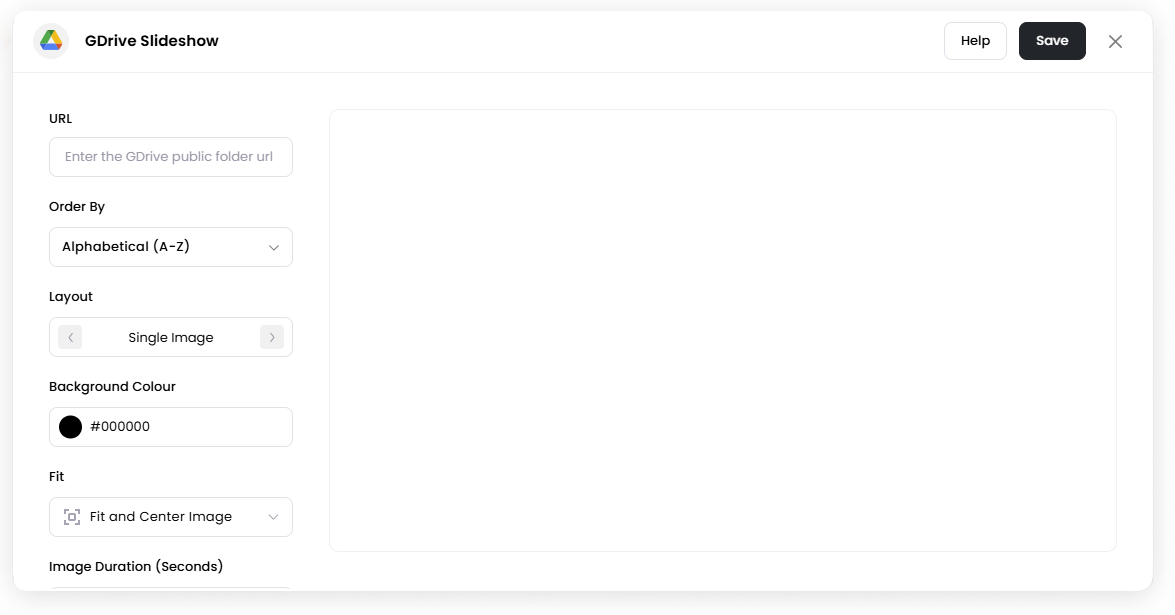
Content is loaded directly from the Google Drive folder URL.
Add the GDrive Slideshow App
Open the Playlist where you want to add the Google Drive slideshow.
In the right panel, drag GDrive Slideshow into the playlist.
Open the scene to configure it.
Paste the Google Drive public folder URL.
Adjust the slideshow settings if needed.
Click Save.
Configuration Options
URL Enter the public Google Drive folder URL containing the images or videos you want to display.
The folder must be set to Anyone with the link can view.
Order By Choose how files are ordered in the slideshow.
Example:
Alphabetical (A–Z)
Recently Uploaded
Layout Select from the template how the files will be displayed on the screen.
Background Colour Choose the background color behind the slideshow.
Fit Controls how images and videos fit on the screen
Example:
Fit and Center
Scale Image to frill
Image Duration (Seconds) Set how long each image is displayed before switching to the next item (doesn't affect video's duration)
Transition Speed Control how quickly images transition.
Randomize Order Display media in a random order instead of the folder order.
Set the Scene Duration
After saving the app, you can adjust how long the scene stays in the playlist.
In the Playlist, find the GDrive Slideshow scene.
Click the duration value (for example,
00:30) to set how long the scene plays.00:30means the scene will play for 30 seconds.
Notes
The Google Drive folder must be publicly accessible (Anyone with the link can view).
The app supports common image formats such as JPG, PNG, GIF, WebP, and HEIC.
Supported video formats include MP4, MOV, WEBM, and OGG.
The Gdrive Slideshow app can only support up to 10 video files, but there is no limit for images.
Videos currently play without sound.
For best performance, keep files optimized and ideally under 1GB.