
Secured Dashboard (Beta)
The Secured Dashboard app lets you display private dashboards on your screens. It automatically signs in and captures screenshots for your screens.
When you add and setup an app to a playlist, it appears as a scene.
Ideal for internal tools, analytics dashboards, or admin panels that are not publicly accessible.
Add the Secured Dashboard App
Open the Playlist where you want to add the dashboard.
In the right panel, find and drag the Secured Dashboard into your playlist.
Open the secured dashboard scene to configure.
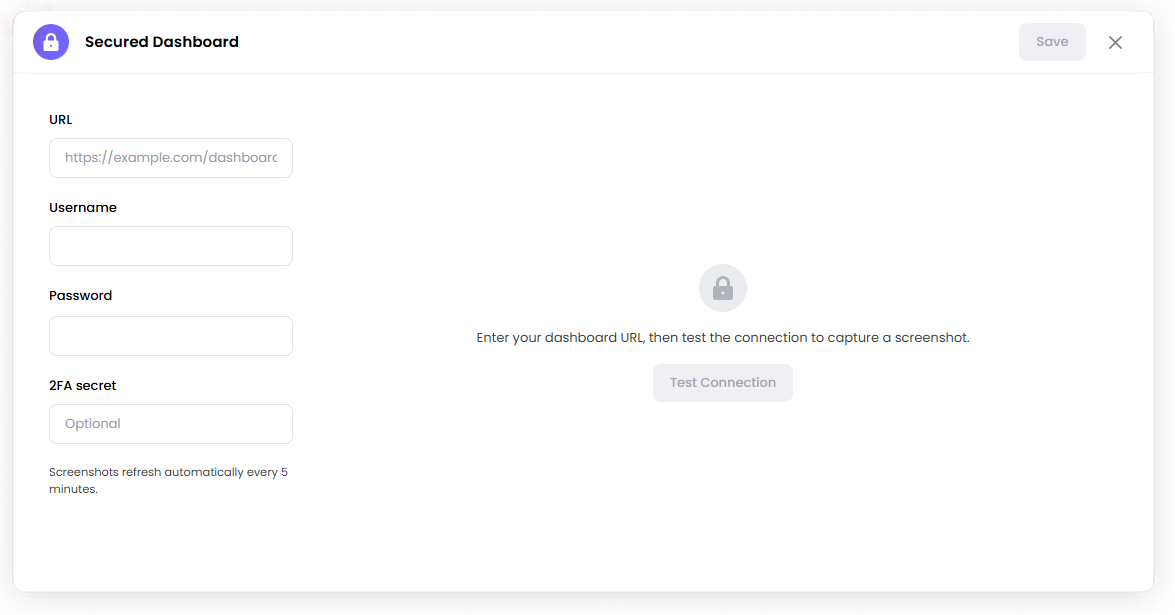
Enter your dashboard details.
Configuration Options
URL: Enter the full link to your dashboard (for example, https://example.com/dashboard)
Username: Enter the login username
Password: Enter the login password
2FA Secret (Optional): Enter the secret key if your account uses two-factor authentication. This allows automatic code generation during login.
Test Connection: Click this to verify login and capture a preview screenshot
Testing the Connection
After entering your details, test the connection to make sure everything works.
Click Test Connection
Wait for the system to log in and capture a screenshot
If successful, you will see a preview
Click Save.
Your login details are used only to access your dashboard and capture screenshots. We do not display your credentials on your screens. If you're unsure about using your personal account, you can use a dedicated or read-only account for added security.
How It Works
The app logs into your dashboard and captures a screenshot automatically.
Screenshots refresh every 5 minutes to keep your display updated.
Secured Dashboard app is currently labeled Beta while fixes and improvements are being developed.
Set the Scene Duration
After saving the app, you can also adjust how long the scene stays in the playlist.
In the Playlist, find the Secured dashboard scene.
Click the duration value (for example,
00:30)00:30means the scene will play for 30 seconds.
Common Issues
Login failed: Double-check your username and password. Make sure there are no extra spaces.
2FA not working: Use the secret key, not the code from your authenticator app.
No screenshot or incorrect display: Check and test the connection to make sure the dashboard loads properly after login.
If you're still having trouble, feel free to contact us and we’ll help you set it up.