
What is a Workspace?
A workspace is a sub-section of your Juuno account where you organize screens, playlists, and schedules for a specific project, location, or client. Each workspace keeps content separate, making it easy to manage multiple setups from one account.
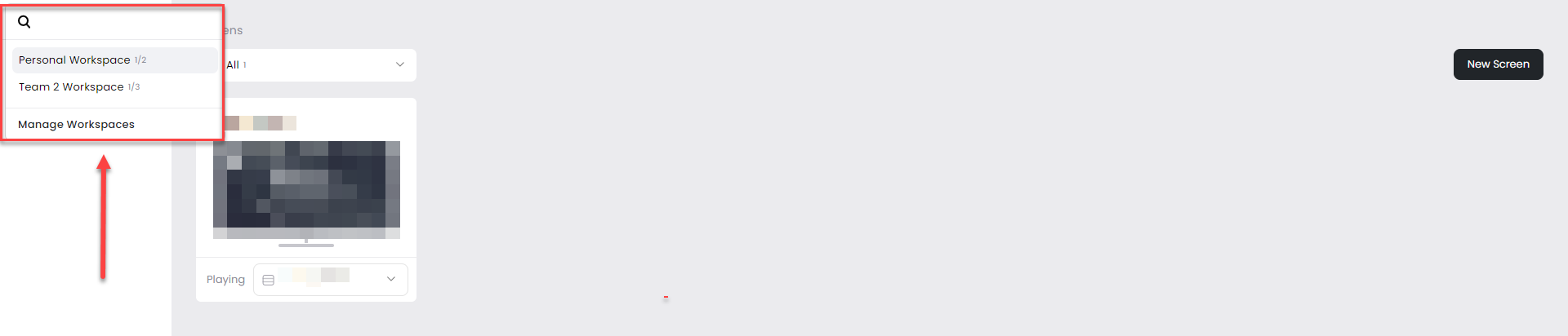
How workspaces organize your content
When you create a workspace, it gets its own set of playlists, schedules, and screens. This separation helps you manage different locations (like separate café branches) or client projects without mixing content.
Your account can have multiple workspaces. Switch between them using the workspace dropdown in the sidebar.
Workspace vs Account
Account controls billing, team members, and global settings.
Workspaces live inside your account and handle day-to-day content management. Think of your account as the billing and admin layer, and workspaces as the content layer.
Global playlists and global assets are shared across all workspaces in your account. Only admins can edit these global assets and playlists.
Creating and managing workspaces
Go to Settings.
Select Workspaces.
Click + New Workspace.
Enter a workspace name.
Set the number of screen to the workspace.
Click Create Workspace
You must have available (unallocated or floating) screens in your subscription to assign to the new workspace. If all screens are already allocated to existing workspaces, you can:
Remove or unallocate screens from an existing workspace, or
Purchase additional screens on your subscription
Understanding Screen Allocation
Screens in Juuno can be:
Allocated screens — assigned to a specific workspace.
Unallocated screens — floating or not assigned to any workspace and available to allocate.
When creating a workspace, you assign a number of screens from the available unallocated screens.
Connected Screens and Limits
When you connect a device or screen to Juuno, it uses one screen from your subscription.
Connected screens count toward your total screen limit. Because of this, there may be situations where you cannot reduce screens on your workspace.
Example
Let’s say your subscription has 5 screens, and all 5 screens are allocated to your workspace.
You then connect 2 screen devices
2 of your 5 screens are now in use
3 screens remain unused, and they are allocated to the workspace
If you try to reduce the number of allocated screens of that workspace to 1, this will not work because 2 screens are currently being used by connected devices.
You can reduce the number of screens allocated to the workspace, but you cannot reduce it below the number of connected devices
Team access
Juuno supports two types of team access: Account Admins and Regular Users.
Account Admins have access to all workspaces and account management settings, including billing.
Regular Users only have access to the workspaces they are assigned to. This allows you to give team members access to specific workspaces without exposing other workspaces in your account.
Workspaces commonly used for:
Multiple locations — Separate workspaces for each store, office, or venue
Different projects — One workspace per project keeps their content isolated
Departments — Different teams managing their own screens and content